Guide
How Guests Find Their Wedding Table With a QR Code
Print one QR for the wedding. Guests scan it, search their name, and see their table, seat and place in the room — kept in sync with The Wedy seating plan.
The queue at the seating chart is optional
A poster of names in tiny type looks finished until eighty people arrive at once. Someone cannot find themselves. Someone else is standing in the light trying to photograph the board. A groomsman becomes a concierge.
A QR for the table lookup does a smaller, clearer job. Guests scan one code, search their own name, and see their table, their seat, and where that table sits in the room. In The Wedy this page is called Guest lookup. The printed QR is Guest QR. Both come from the seating plan you already built — not from a second list you have to keep in sync by hand.
What the QR is actually for
The QR is not the seating plan. It is the public door to it. Couples still assign tables in private. The code is only what guests need on the day: a phone-sized answer to “where do I sit?”
A useful lookup does four things:
- Works on any phone, without an app
- Finds the guest by name, not by table number they do not know yet
- Shows the table and the exact seat, not only a room zone
- Shows where that table sits in the floor plan, so people can walk there
It does not replace place cards on the table. Those still tell a guest which chair is theirs once they have arrived. The QR gets them to the right table without a bottleneck at the door.
Why the poster and the spreadsheet both fail
Paper charts fail in predictable ways. The type is too small. The last cancellation is not on the print. Two cousins share a first name. Guests with the same surname hunt the whole board. Nobody wants to be the person blocking the entrance.
A PDF emailed the night before fails for a different reason: half the room never opens it, and the half that does is looking at yesterday’s file.
What guests actually need on the day
| Comparison | Printed seating chart | QR guest lookup |
|---|---|---|
| How they find themselves | Scan a wall of names | Type two letters of their name |
| What they see | A table number, if they can read it | Table, seat, and a map of the room |
| Last-minute change | Reprint, or a handwritten correction | The same QR, already updated |
| Queue | One board, many people | As many phones as guests |
| Privacy | The whole room reads every name | Each guest sees their own seat |
What guests see after they scan
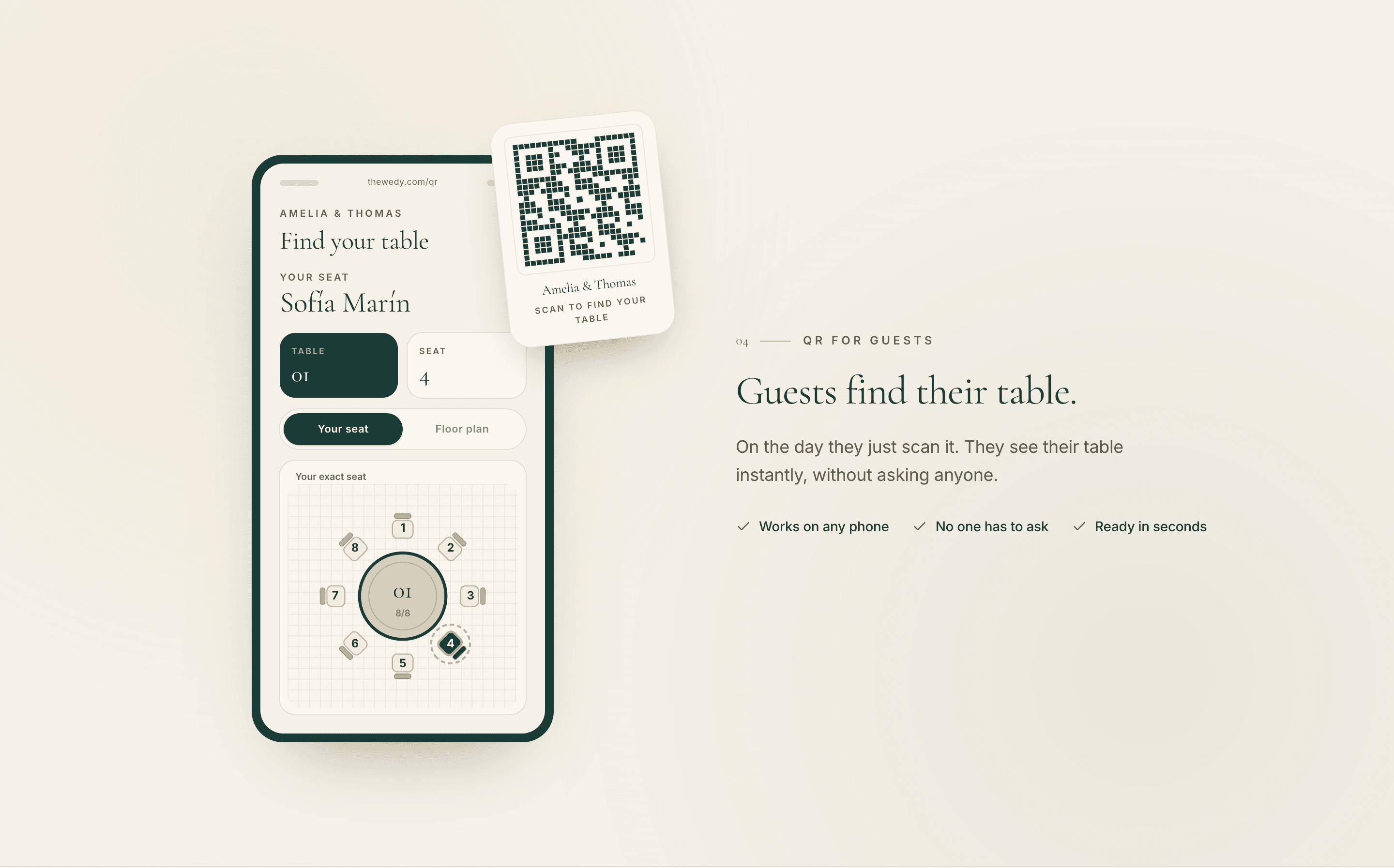
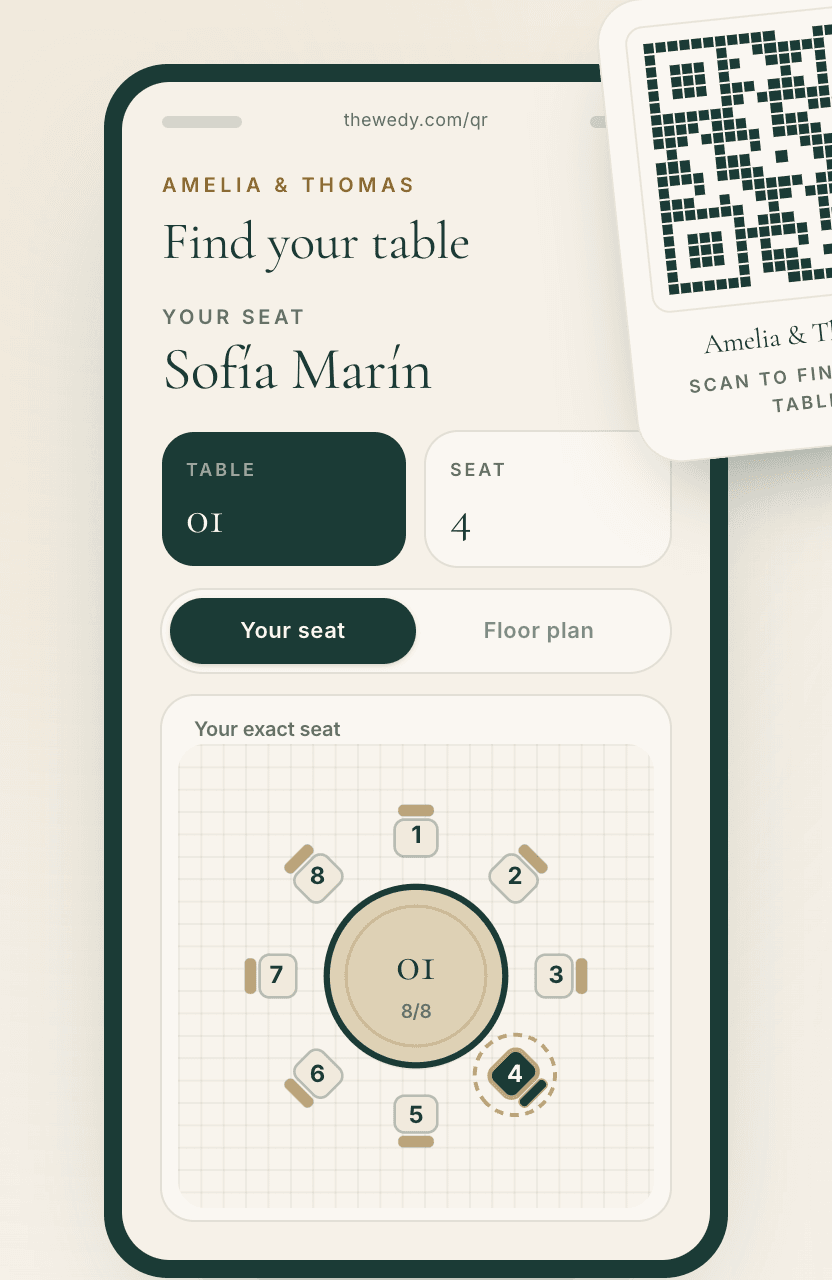
In The Wedy the public page is titled Find your seat. Guests type at least two letters of their name. Matching guests appear. They pick themselves. The page then shows their name, table, seat, who they are seated with, and a highlighted place on the floor plan.
They can switch between Your seat — a diagram of their table with their chair marked — and Floor plan, which shows the table in the room, around the dance floor, the entrance and the other tables. If the wedding is bilingual, they can change language on the same page.

The QR only works if the seating plan is real
You cannot print a useful code from an empty board. Guest QR unlocks once guests have assigned seats. Until then the workspace says Seat guests to unlock the QR — which is the right order. Collect RSVPs, seat people, then publish the lookup.
The seating board in The Wedy is the source. Tables, locked seats, open chairs and guest names live there. The lookup is a published snapshot of that board, with one important difference: after you publish, the QR stays up to date automatically when the seating plan changes. You do not print a new code for a swapped cousin.

How to set up Guest QR in The Wedy
The couple-facing name in the workspace is Guest QR. The public page is Guest lookup. The sequence is short once tables exist.
From seated guests to a printed code
- 01
Seat the confirmed guests
Work from the RSVP list, not a copied spreadsheet. Assign tables on the seating board. Lock any seats that must not move.
- 02
Create the guest QR code
When guests have assigned seats, open Guest QR and publish the lookup. The Wedy generates a print-ready QR for that wedding.
- 03
Download the print QR
Download the SVG and print it at a size people can scan from a metre away — on a welcome sign, a small card at the door, or both.
- 04
Leave the same code up
If someone changes table later, you do not reprint the QR. The published lookup updates. Guests who scan again see the new seat.
Before you send the file to print
- Every attending guest has a table — or you know who is still open on purpose
- Locked seats are actually locked for anyone who must not be moved
- You have published Guest lookup, not only previewed it
- You scanned the printed proof with a phone that is not on your wifi
- Table names on the lookup match what staff and the venue will say aloud
- Place cards, if you are printing them, use the same names as the guest list
Where to put the printed code
One handsome board at the entrance is enough if the doorway is wide. For a 150-guest room, put the same QR in two or three places so a queue never forms around a single sign.
Places that work:
- A welcome sign that already carries your names and date — the QR sits at the bottom, labelled Scan to find your table
- A small card on the escort table, next to water or the first drink
- A second copy near the bar or the courtyard, for guests who skipped the door
- A tiny version on each table only if you want late arrivals to check without walking back
Print dark on light. Do not varnish the code into a mirror. Do not shrink it onto a place card — that is the wrong job. Guests should be able to scan without leaning into floral foam.
What still belongs on paper
The QR gets people to the table. Place cards still earn their keep once they sit down: the name at the setting, the courtesy for older guests who will not search a phone, the last confirmation that this chair is theirs.
If you are already in The Wedy, generate place cards from the same guest list after the seating plan is stable. Do not typeset a second set of names in Canva. The lookup, the cards and the catering list should spell Sofía the same way.
Which plan includes Guest QR
QR to find your table is included with the seating plan and floor plan in the Wedding Planning Suite and Wedding Atelier. On the Wedding Invitation plan you can add Seating plan as an add-on — that add-on is what unlocks the table plan and the guest QR, not a separate product.
Wedding Invitation on its own is the website, digital invitation and RSVP. It does not include seating. If you already collected replies there, upgrading or adding seating keeps the same guest list. You do not start again.
The short version
Seat people from the real RSVP list. Publish Guest lookup. Print one QR at a scannable size. Put it where guests actually arrive. Keep place cards for the table. Change the plan later without reprinting the code.
Day-of check
- The lookup is published
- You scanned the printed QR yourself
- A second copy exists if the entrance gets crowded
- Staff know guests search their name — they do not need a table number first
- Someone can unpublish the page after the wedding if you want the link quiet
Frequently asked questions
Do guests need to download an app?
No. They scan the QR with the camera they already have. The lookup opens in the browser. There is nothing to install.
What if two guests have the same name?
They type their name and choose themselves from the matching list. If the names are identical, add the surname guests actually use, or a middle initial, on the guest list before you publish.
Does the QR change when we move someone?
No. You print the code once. After Guest lookup is published, the same QR stays up to date automatically when the seating plan changes.
Can guests see where other people sit?
They search their own name and see their table, their seat, who is seated with them, and that table on the floor plan. It is not a public directory of the whole room.
Is Guest QR included on every plan?
No. It comes with the seating plan in the Wedding Planning Suite and Wedding Atelier. On Wedding Invitation you add the Seating plan add-on, which includes the table plan and the guest QR.
Should we still print a seating chart?
You can, for the photographer or for guests who will not use a phone. Most rooms do better with a scannable welcome sign and place cards at the settings. One giant board is usually the thing that creates the queue.
When should we publish the lookup?
After the seating plan is good enough to share, not after every RSVP has arrived. You can keep editing. Publish once you want guests and coordinators to be able to scan. Unpublish if you need the page offline.
Continue reading
Related stories
How to Create a Wedding Seating Plan Online Without Losing Your Mind
Creating a wedding seating plan doesn’t have to mean endless spreadsheets, sticky notes and last-minute table changes. Here’s a simpler way to organise your guests and build a seating plan online.

How to Create Wedding Place Cards (With Free Templates)
A practical guide to wedding place cards: what to print at each setting, how they connect to your seating plan, and how The Wedy creates every guest name from your list.

Can You Use Your RSVP Guest List to Create the Wedding Seating Plan?
Turn confirmed wedding RSVPs into an organised seating plan without copying guest information between spreadsheets and separate tools.